Category: WordPress Hosting

  • WordPress.com vs WordPress.org: Which One Is Right for Your Website

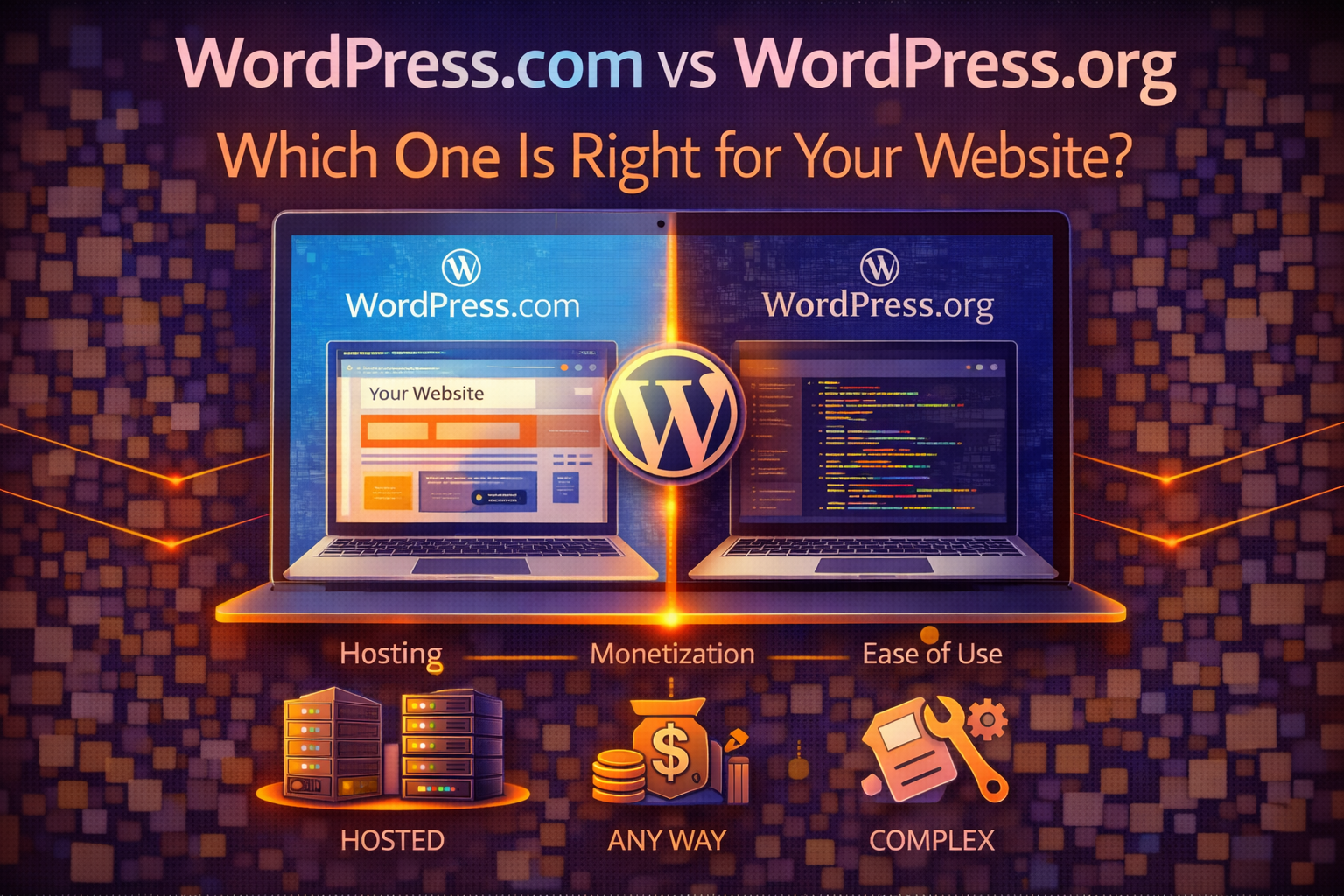
    WordPress.com vs WordPress.org: Which One Is Right for Your Website

    The WordPress.com versus WordPress.org confusion is one of the most common stumbling blocks for people building their first website, and it’s easy to understand why. The two products share a name, share a visual identity, and are built around the same core software — but they are fundamentally different products that serve different needs, with different cost structures, different levels of control, and different long-term implications for what you can do with your website.

    Choosing the wrong one is a mistake that’s recoverable but annoying to fix. Starting on WordPress.com when you needed WordPress.org means migrating your content later and potentially losing the domain authority and SEO progress you built in the meantime. Starting on WordPress.org when you needed WordPress.com means taking on technical responsibilities you weren’t prepared for. Understanding the distinction clearly before you start saves the frustration of discovering it after you’ve already built something.


    The Fundamental Difference in One Paragraph

    WordPress.org is the home of the open-source WordPress software — the free, downloadable content management system that you install on your own web hosting. You own the installation completely, you can customize it without restriction, and you’re responsible for managing it. WordPress.com is a hosted service built on WordPress software — you create an account, and WordPress.com hosts your website on their servers, manages the technical infrastructure, and controls what you can and can’t do with your installation in exchange for handling the technical complexity for you.

    The simplest analogy is the difference between buying a house and renting an apartment. WordPress.org is the house — you own it, you can renovate it however you want, and you’re responsible for maintenance. WordPress.com is the apartment — someone else owns the building, manages the infrastructure, and sets the rules for what you can do with the space, but you don’t have to worry about the boiler or the roof.


    WordPress.com: What It Is and What It Isn’t

    WordPress.com is a hosting platform — created and operated by Automattic, the company founded by WordPress co-creator Matt Mullenweg — that makes it possible to create a WordPress website without purchasing hosting, installing software, or managing any technical infrastructure. You sign up, choose a plan, and start building your site within a managed environment that handles everything below the content layer automatically.

    The free tier at WordPress.com allows you to create a basic website with a WordPress.com subdomain — yoursite.wordpress.com rather than yoursite.com — with access to a curated selection of themes and basic functionality. The free tier is appropriate for personal journals, hobby sites, and people who want to explore WordPress without any financial commitment. It is not appropriate for business websites, professional blogs, or any site where having a custom domain and full control over the appearance matters.

    The paid plans at WordPress.com range from the Personal plan at around $9 per month to the Business plan at around $25 per month and the Commerce plan at around $45 per month. Each tier unlocks additional features — custom domain connection on Personal and above, premium themes on Premium and above, plugin installation on Business and above, WooCommerce on Commerce. The pricing is straightforward with no renewal rate shock, which is a genuine advantage over many traditional hosting providers.

    The Business plan at $25 per month is the tier that unlocks plugin installation — the ability to add any plugin from the WordPress plugin directory to your WordPress.com site. Below that tier, you’re limited to the plugins that WordPress.com has pre-approved and built into their platform. This limitation is the most consequential practical difference between WordPress.com and WordPress.org for site owners who need specific functionality — contact forms with specific features, SEO plugins, e-commerce solutions, membership systems — because below the Business plan, you can only use what WordPress.com has decided to include.

    The theme selection on WordPress.com is curated rather than open. You can use themes that WordPress.com has vetted and made available on their platform. On the free and lower-paid tiers, the selection is limited further. The ability to install any theme from the WordPress theme directory, or to install a premium theme purchased from a third-party marketplace, is available on Business and above. Below that, you work within the curated selection.


    WordPress.org: What It Is and What It Requires

    WordPress.org distributes the WordPress software — the same core software that WordPress.com runs on — as a free download. Installing it on your own web hosting gives you a WordPress installation that you control completely, with no restrictions on themes, plugins, customization, or monetization.

    The “free” in WordPress.org’s software requires qualification. The software itself costs nothing, but running it requires web hosting — which costs money — and a domain name — which costs money. A typical WordPress.org setup costs between $3 and $30 per month for hosting depending on the tier and provider, plus $15 to $20 per year for a domain. The total is lower than WordPress.com’s Business plan for most hosting configurations, and higher than WordPress.com’s Personal plan for equivalent features.

    The technical responsibilities that come with WordPress.org are real and worth being honest about. You are responsible for keeping WordPress core updated. You are responsible for keeping plugins and themes updated. You are responsible for maintaining backups — either through a plugin or through your hosting provider’s backup service. You are responsible for security monitoring and for responding if your site is compromised. None of these responsibilities are technically overwhelming, and good hosting providers automate several of them, but they exist and they require ongoing attention that WordPress.com handles on your behalf.

    The control that WordPress.org provides in exchange for those responsibilities is complete. You can install any of the 60,000 plugins in the WordPress plugin directory. You can install any theme, including premium themes from third-party marketplaces. You can modify theme files, add custom code, and build any functionality that PHP, JavaScript, and WordPress’s plugin architecture allow. You can use any monetization method — display advertising, affiliate links, sponsored content, digital products, subscriptions — without restriction. You can move your entire site to a different host whenever you want by migrating the files and database.


    The Monetization Difference That Matters Most for Bloggers

    One of the most practically significant differences between WordPress.com and WordPress.org for bloggers and content creators is the monetization flexibility — specifically, the ability to run Google AdSense and other advertising networks on your site.

    WordPress.com restricts advertising on plans below the Business tier. On the free, Personal, and Premium plans, WordPress.com shows their own advertising on your site — you don’t earn revenue from it, but it exists. Running your own advertising network — Google AdSense, Mediavine, AdThrive — requires the Business plan or above, and even then the implementation is less flexible than on a self-hosted WordPress.org installation.

    On WordPress.org, advertising is completely unrestricted. You can run Google AdSense, apply for premium advertising networks like Mediavine or Raptive once you meet their traffic requirements, use affiliate marketing without restriction, and implement any monetization strategy that exists in the WordPress ecosystem. For bloggers and content creators whose revenue model depends on advertising or affiliate marketing, WordPress.org is the only appropriate foundation.

    The SEO implication of the WordPress.com versus WordPress.org choice is also worth addressing directly. Both platforms can rank in search results — WordPress.com sites are indexed by Google and can accumulate domain authority over time. The SEO flexibility difference is in implementation: WordPress.org allows installation of comprehensive SEO plugins like Yoast SEO and Rank Math that provide detailed control over every technical SEO element of your site. WordPress.com includes built-in SEO tools on paid plans but with less granular control than dedicated SEO plugins provide. For sites pursuing aggressive SEO strategies, the plugin flexibility of WordPress.org produces better outcomes.


    Cost Comparison: The Full Picture

    The cost comparison between WordPress.com and WordPress.org is more nuanced than a simple plan price comparison because the right comparison depends on which WordPress.org hosting tier is appropriate for your needs.

    For a basic personal site or blog, the comparison is between WordPress.com Personal at around $9 per month — which includes a custom domain and removes WordPress.com ads — and WordPress.org on budget shared hosting at around $3 to $5 per month for hosting plus $1.50 per month for domain costs. WordPress.org wins on cost at this level while providing more flexibility, though it requires more technical involvement.

    For a growing content site that needs plugin access, the comparison is between WordPress.com Business at $25 per month and WordPress.org on quality shared hosting like SiteGround GrowBig at $29.99 per month renewal. These are essentially equivalent in price, with WordPress.org providing more flexibility and WordPress.com providing less maintenance overhead. The decision at this price point comes down to how much you value the managed infrastructure versus the open ecosystem.

    For an e-commerce site, the comparison is between WordPress.com Commerce at $45 per month and WordPress.org with WooCommerce on managed hosting. WordPress.org with WooCommerce on appropriate hosting is typically less expensive and significantly more flexible for complex store configurations — the plugin ecosystem for WooCommerce extensions is vastly larger than what WordPress.com’s Commerce plan includes, and the customization options are deeper.


    The Lock-In Question

    One of the most practical considerations in the WordPress.com versus WordPress.org decision is how easy it is to move to a different platform later — either from WordPress.com to WordPress.org, or from WordPress to something else entirely.

    Moving from WordPress.com to WordPress.org is possible and relatively well-supported — WordPress.com provides an export tool that generates a file containing your posts, pages, and comments in a format that WordPress.org can import. The migration isn’t perfectly lossless — some formatting may need manual adjustment, media files require additional steps to transfer, and any customizations made using WordPress.com-specific features don’t transfer to a self-hosted installation. But the migration is doable and the content you’ve created doesn’t disappear.

    Moving from WordPress.com to an entirely different platform — Squarespace, Wix, or a custom-built solution — is more complex. The WordPress export format isn’t universally compatible, and rebuilding the visual design on a different platform requires starting from scratch. This lock-in is not unique to WordPress.com — it exists with any hosted platform — but it’s worth being aware of when making an initial platform choice, because the content investment you make in the early months of a site becomes a migration cost if you want to leave later.

    WordPress.org’s portability advantage is that moving to a different host is straightforward — the files and database move cleanly, and the site works identically on the new infrastructure. Moving from WordPress.org to a non-WordPress platform is still complex, but within the WordPress ecosystem your site is infrastructure-independent in a way that WordPress.com sites are not.


    Who Should Use WordPress.com

    WordPress.com is the right choice for personal bloggers and hobby site creators who want to publish content without any technical involvement and have no plans to monetize through advertising or to customize beyond what the platform provides. The free and Personal tiers serve this use case well — the platform handles all technical management, the writing experience is clean and distraction-free, and the cost is low or zero.

    It’s also a reasonable choice for small businesses that need a simple, professional online presence — a few pages describing their services, a contact form, a blog — and whose team has no technical resources for managing a self-hosted WordPress installation. The Business plan at $25 per month provides plugin access and professional hosting in a fully managed package that requires no server knowledge to operate.

    WordPress.com is not the right choice for bloggers with monetization plans, content sites pursuing aggressive SEO strategies, e-commerce businesses needing complex store functionality, or any site where full control over the technical environment is necessary for the use case.


    Who Should Use WordPress.org

    WordPress.org is the right choice for the majority of websites that take their online presence seriously. Bloggers who intend to monetize, small businesses whose website is a primary marketing channel, e-commerce stores of any complexity, and content creators building audience-supported businesses all belong on WordPress.org rather than WordPress.com.

    The technical responsibility that comes with WordPress.org is manageable for non-technical users with the right hosting provider. Managed WordPress hosting handles the core updates, security monitoring, and backup management that represent the most consequential maintenance tasks. Budget shared hosting with automatic WordPress updates and reliable backup service covers the basics for sites where managed hosting costs aren’t justified. Neither requires server administration knowledge to use effectively.

    The freedom that WordPress.org provides — to install any plugin, use any theme, run any monetization strategy, and move to any host — is the foundation that serious websites are built on. Starting on WordPress.org rather than having to migrate to it later is always the better choice for any site with growth ambitions.


    The Final Verdict

    WordPress.com and WordPress.org are not competing products in the sense of one being better than the other — they’re different products that serve different needs. The confusion comes from the shared name and shared software, not from genuine similarity in what they offer.

    Choose WordPress.com if you want zero technical involvement and your needs fit within what the platform provides. Choose WordPress.org if you want full control, full flexibility, and the freedom to build and monetize without restrictions. For most people reading this post, the answer is WordPress.org — hosted on a provider that fits your budget and handles the technical management on your behalf.

    → Related: How to Move Your WordPress Site to a New Host Without Losing Anything

    → Also worth reading: The Best WordPress Hosting in 2026 (For Every Budget and Use Case)

    Currently on WordPress.com and wondering whether the migration to WordPress.org is worth the effort for your specific situation, or trying to decide which platform to start on for a new project? Leave a comment with your use case and we’ll give you a direct recommendation.
  • How to Move Your WordPress Site to a New Host Without Losing Anything

    How to Move Your WordPress Site to a New Host Without Losing Anything

    Moving a WordPress site to a new host is one of those tasks that sounds more technically intimidating than it actually is, and that intimidation keeps a significant number of website owners stuck on hosting that no longer serves them well. The fear of losing content, breaking the site, or causing extended downtime prevents people from making a hosting switch that would improve their site’s performance, reduce their costs, or both — and they absorb the consequences of inadequate hosting indefinitely rather than deal with a migration that, done correctly, takes a few hours and produces zero data loss and minimal downtime.

    This guide walks through the complete migration process — from preparing the migration to verifying that everything transferred correctly — in enough detail that a non-technical WordPress site owner can execute it without needing to hire a developer or rely on their new host’s migration service. Where specific tools and plugins are involved, the instructions are precise enough to follow rather than general enough to require additional research.


    What a WordPress Migration Actually Involves

    Before getting into the process, understanding what you’re actually moving eliminates the anxiety that comes from not knowing what could go wrong.

    A WordPress site consists of two components that need to transfer together for the migration to be complete. The first is the files — the WordPress core files, your theme files, your plugin files, and the media library containing every image and file you’ve uploaded to the site. The second is the database — the MySQL database that stores your posts, pages, comments, settings, user accounts, and virtually all of the content that makes your site yours rather than a generic WordPress installation.

    A successful migration transfers both components completely and reassembles them correctly on the new host so that WordPress can find the database it expects, connect to it with the correct credentials, and serve your site exactly as it appeared on the old host. The things that can go wrong in a migration almost always trace back to one of two problems: incomplete transfer of files or database, or incorrect database connection settings after the transfer. Understanding this means understanding where to look if something isn’t right after the migration.

    The other component of a migration is DNS — the domain name system record that tells browsers where to find your website. Changing your DNS to point to the new host is the final step of the migration and the step that makes the switch live. The propagation period — the time it takes for DNS changes to spread across the internet — typically takes between a few minutes and 48 hours, during which some visitors may still be directed to the old host while others reach the new one. Managing this transition correctly prevents the window where your domain points to one host but your content is on another.


    Before You Start: The Preparation That Prevents Problems

    Preparation before the migration begins is what separates migrations that go smoothly from ones that require troubleshooting. Thirty minutes of preparation prevents hours of recovery.

    The first preparation step is creating a complete backup of your current site using a plugin rather than relying on your current host’s backup. UpdraftPlus is the most reliable free backup plugin for this purpose — install it on your current WordPress installation, run a full backup that includes both the files and the database, and download the backup files to your local computer. This backup is your safety net — if anything goes wrong during the migration, you restore from this backup rather than trying to reconstruct what went wrong.

    The second preparation step is confirming that your new host is ready to receive the migration. Log into the new hosting account, verify that you can access the control panel, and confirm that WordPress can be installed or that a database can be created manually. Some hosts configure new accounts immediately after signup; others take a few minutes to an hour for account provisioning to complete. Starting the migration before the new account is fully provisioned wastes time and sometimes produces errors that look like migration problems but are actually provisioning delays.

    The third preparation step is noting your current site’s configuration details — the database name, database username, and database password from your current host’s control panel, and the WordPress address and site address from your current WordPress settings. These details are useful for troubleshooting if the migration produces database connection errors, and having them written down before you need them saves the scramble of finding them under pressure.


    Method 1: Using a Migration Plugin (Recommended for Most Users)

    The migration plugin method is the most accessible approach for non-technical users and produces reliable results for the majority of WordPress sites. Duplicator and All-in-One WP Migration are the two plugins worth knowing about — both are free for standard use, both handle the file and database transfer together, and both are maintained well enough to work with current WordPress versions.

    All-in-One WP Migration is the simpler of the two for straightforward migrations. Install the plugin on your current WordPress site, navigate to All-in-One WP Migration in the WordPress admin menu, select Export, and choose File as the export destination. The plugin packages your entire WordPress installation — files and database together — into a single archive file that you then import on the new host.

    On the new host, install WordPress through the host’s one-click installer, then install All-in-One WP Migration on the fresh WordPress installation. Navigate to All-in-One WP Migration and select Import. Upload the archive file exported from your old site. The plugin overwrites the fresh WordPress installation with your complete site — all content, settings, plugins, themes, and users.

    The free version of All-in-One WP Migration has a file size limit for imports — currently 512MB in most implementations — that affects larger sites with extensive media libraries. Sites under this limit can complete the entire migration with the free version. Sites above this limit have two options: purchase the unlimited extension, which removes the size restriction, or use the Duplicator plugin instead, which handles large sites through a different packaging approach without the same size constraint.

    Duplicator’s approach creates two files — an archive containing your site’s files and database, and an installer PHP file — that you upload to the new host’s server through the file manager in the hosting control panel rather than through the WordPress admin. The installation process runs through a web browser by navigating to the installer file’s URL on the new host. The process takes about fifteen minutes for a typical site and handles large sites that exceed All-in-One WP Migration’s size limits.


    Method 2: Manual Migration (Most Control, Most Steps)

    The manual migration method involves transferring the files and database separately rather than using a plugin to package them together. It requires more steps than the plugin method but gives you complete visibility and control over each component of the migration — which is useful for troubleshooting if something goes wrong and for large sites where plugin-based packaging is slow or unreliable.

    The file transfer step uses FTP — File Transfer Protocol — to download your WordPress files from the old host and upload them to the new host. FileZilla is the most widely used free FTP client and works identically on Windows and Mac. Connect to your old host using the FTP credentials from your hosting control panel, navigate to the public_html directory (or the directory where your WordPress files are located), and download the entire contents to a folder on your local computer.

    While the file transfer is running — it can take anywhere from a few minutes to an hour depending on your media library size and internet connection speed — you can work on the database export in parallel. Access phpMyAdmin through your old host’s control panel, select your WordPress database from the left sidebar, click Export, choose the Quick export method with SQL format, and download the resulting .sql file. This file contains your entire WordPress database — every post, page, comment, and setting.

    On the new host, create a new MySQL database through the hosting control panel. Most hosts use cPanel or a similar interface where you navigate to MySQL Databases, create a new database, create a new database user, and assign the user to the database with full privileges. Note the database name, username, and password — you’ll need these in the next step.

    Import the database by opening phpMyAdmin on the new host, selecting the new empty database, clicking Import, and uploading the .sql file exported from the old host. The import process populates the new database with all your WordPress content.

    Upload the WordPress files to the new host using FileZilla — connect to the new host’s FTP, navigate to the public_html directory, and upload the files downloaded from the old host. Before completing the upload, open the wp-config.php file in a text editor and update the database name, username, and password to match the new database credentials created on the new host. This step — updating wp-config.php with the new database connection details — is the step most often missed in manual migrations and the one that produces the database connection error that breaks the site on the new host.


    Updating the Database URL: The Step Most Guides Skip

    Both migration methods — plugin and manual — can produce a situation where the WordPress site loads but some elements look broken or links redirect incorrectly. This typically happens because the WordPress database contains the old host’s URL in multiple places, and simply moving the database to the new host doesn’t update those references automatically.

    The search-replace step that fixes this uses a tool called Better Search Replace — a WordPress plugin that searches the database for the old URL and replaces it with the new URL. Install Better Search Replace on the migrated WordPress installation, navigate to Tools and then Better Search Replace, enter your old URL in the Search for field and your new URL in the Replace with field, select all database tables, and run the replacement.

    If your old and new URLs are identical — which is the case for most migrations where you’re keeping the same domain — this step is unnecessary. If you’re migrating from a temporary URL on the new host to your real domain, or from HTTP to HTTPS, or making any URL change as part of the migration, the search-replace step is essential for the site to function correctly.

    The WP-CLI command line alternative for users with SSH access is faster for large databases: wp search-replace 'old-url.com' 'new-url.com' --all-tables. For users without SSH access, the Better Search Replace plugin accomplishes the same result through the WordPress admin interface.


    Testing Before Changing DNS

    The most important step in the migration process that most guides rush past is thorough testing of the migrated site before changing DNS to point your domain to the new host. Once DNS is changed, visitors are directed to the new host — and discovering a problem after DNS propagates means your live site is broken while you fix it.

    Testing the migrated site before DNS changes requires accessing it through a temporary URL or by modifying your local hosts file to preview the new host while your domain still points to the old one. Most hosting providers assign a temporary subdomain or IP address to new accounts specifically for pre-DNS testing — confirm this with your new host before starting the migration.

    The testing checklist worth working through before changing DNS covers the homepage loading correctly, internal links navigating to the right pages, images displaying correctly throughout the site, the WordPress admin being accessible and functional, forms submitting correctly and sending notifications to the right email address, and — for WooCommerce stores — the checkout process completing without errors. Each of these checks catches a different category of migration problem before it affects real visitors.


    Changing DNS: The Final Step

    DNS change instructions vary by where your domain is registered rather than where it’s hosted. Log into your domain registrar account — the service where you purchased the domain, whether that’s Namecheap, GoDaddy, or wherever your domain lives — and update the nameservers to the ones provided by your new host, or update the A record to point to your new host’s IP address.

    Nameserver changes — where you replace the old host’s nameservers with the new host’s nameservers — are the simplest approach and the one most hosting providers recommend. The change is made in your domain registrar’s DNS management section and typically takes between a few minutes and a few hours to propagate, though the quoted 48-hour maximum rarely applies in practice.

    Keep the old hosting account active for at least 48 hours after changing DNS. During the propagation period, some visitors will still reach the old host, and having it active ensures they see your site rather than an error. After 48 hours, propagation is complete worldwide and the old hosting account can be safely cancelled.


    When to Use Your New Host’s Migration Service Instead

    Everything described above can be done independently, but the migration services offered by most quality hosting providers are worth considering as an alternative that trades control for convenience.

    SiteGround, WP Engine, Kinsta, and Hostinger all offer free migration assistance for new customers — either an automated migration plugin configured for their specific infrastructure or a hands-on migration service where their team handles the transfer. For non-technical users who find the process above overwhelming, these services remove the execution burden entirely.

    The trade-off is timing flexibility — hosted migration services schedule migrations rather than allowing you to execute them at a moment that works for your site’s traffic patterns — and transparency, since you have less visibility into what’s happening than when you execute the migration yourself. For most users, the convenience trade-off is worth making. For users who want complete control over the process or who have complex migrations involving multiple sites or databases, the manual approach or plugin approach described above is more appropriate.

    → Related: WordPress.com vs WordPress.org: Which One Is Right for Your Website

    → Also worth reading: The Best WordPress Hosting in 2026 (For Every Budget and Use Case)

    In the middle of a migration that’s produced an error you can’t identify, or planning a migration and not sure which method fits your technical comfort level and site size? Leave a comment with the specific situation and we’ll help you work through it.

  • Managed WordPress Hosting Explained: Is It Worth Paying More

    Managed WordPress Hosting Explained: Is It Worth Paying More

    Managed WordPress hosting is one of the most frequently misunderstood product categories in web hosting, and the misunderstanding cuts in both directions. Some website owners pay for managed hosting when their site’s requirements don’t justify the cost. Others dismiss it as an unnecessary premium without understanding what they’re actually giving up by staying on shared hosting. Both mistakes have real consequences — wasted money in the first case, operational risk and performance limitations in the second.

    This post explains exactly what managed WordPress hosting includes, what it costs, and how to determine whether the premium is justified for your specific situation. The goal is a clear answer to the question in the title — is it worth paying more — that’s specific enough to be useful rather than the vague “it depends” that most explanations retreat to.


    What Managed WordPress Hosting Actually Manages

    The word “managed” in managed WordPress hosting refers to the operational management of the WordPress environment — the ongoing maintenance tasks that keep a WordPress installation running securely and performantly — being handled by the hosting provider rather than the site owner. Understanding specifically what gets managed is the foundation for evaluating whether that management is worth paying for.

    WordPress core updates are the most consequential thing that managed hosting handles automatically. WordPress releases security updates regularly, and unpatched WordPress installations are among the most frequently exploited targets on the web — automated bots scan for outdated WordPress versions and attempt known exploits within hours of a vulnerability being published. On managed hosting, core updates are applied automatically by the provider, typically with compatibility testing that checks for plugin conflicts before deploying to the live site. On shared hosting, core updates are the site owner’s responsibility — which means they happen when the site owner thinks to do them, which is often not soon enough.

    Plugin and theme updates are handled with varying degrees of automation depending on the managed host. Some providers manage plugin updates as part of the service. Others automate core updates but leave plugin updates to the site owner. The distinction matters because outdated plugins are the most common entry point for WordPress security incidents — more so than core vulnerabilities, because the plugin ecosystem is larger and less consistently maintained than WordPress core.

    Server configuration optimization is the category of management that produces the performance advantages of managed hosting. Shared hosting is configured for the average workload across many different types of websites. Managed WordPress hosting is configured specifically for WordPress — PHP settings tuned for WordPress performance, database configurations optimized for WordPress query patterns, caching layers designed around how WordPress generates and serves content. This optimization doesn’t happen on shared hosting because the server serves too many different applications to be tuned for any one of them.

    Security monitoring at the application layer is the final managed element. Generic hosting security operates at the server and network layer — it stops attacks that target the server infrastructure. WordPress-specific security monitoring operates at the application layer — it detects patterns indicating WordPress-targeted attacks, monitors for file changes that suggest a compromised installation, and in the best implementations provides active remediation rather than just notification.


    What Managed WordPress Hosting Does Not Include

    Understanding what managed hosting doesn’t cover is as important as understanding what it does, because the gap between expectations and reality is where the most significant disappointments occur.

    Content management is not managed. The hosting provider manages the technical environment — the server, the WordPress installation, the security monitoring — not the content on your website. Creating posts, managing media, installing and configuring plugins for your specific use case, and making design decisions are your responsibility regardless of how managed the hosting is. This sounds obvious but produces genuine confusion when users expect managed hosting to mean hands-off website operation rather than hands-off server operation.

    Plugin selection and configuration is not managed in most cases. Managed hosts will update plugins to current versions but won’t advise you on which plugins to use, configure complex plugins for your specific requirements, or troubleshoot plugin functionality beyond identifying whether a plugin is causing a conflict. A WooCommerce store requiring specific shipping and payment configuration needs that work done by the store owner or a developer — the managed host keeps the environment running but doesn’t configure the application.

    SEO and content strategy are not managed. A fast, reliable, secure WordPress installation on managed hosting still requires the same content quality, keyword research, and link building that any WordPress site requires to rank in search results. Managed hosting removes operational obstacles to good SEO performance — slow page loads, security incidents, downtime — but doesn’t replace the content work that produces rankings.

    Traffic generation is not managed. The hosting provider keeps your site accessible and fast. Getting people to visit it is entirely your responsibility. This distinction matters because some users approach managed hosting with an expectation that a premium service produces premium results across all dimensions of a website’s success — which conflates the technical layer with the strategic layer in a way that leads to disappointment.


    The Performance Case for Managed Hosting

    The performance argument for managed WordPress hosting rests on three specific advantages over shared hosting that produce measurable differences in page load speed and server response time.

    Server-level caching is the most significant performance advantage. Managed WordPress hosts implement caching at the server layer — before PHP is invoked and before the database is queried — which means cached page requests are served almost instantaneously compared to the full PHP and database processing that uncached requests require. WP Engine’s EverCache, Kinsta’s full-page caching on Google Cloud, and SiteGround’s SuperCacher all implement server-level caching that reduces page generation time for repeat visitors to milliseconds rather than the hundreds of milliseconds that PHP and database processing require.

    The WordPress-specific caching intelligence that managed hosts provide handles edge cases that generic caching solutions miss. WooCommerce cart states, logged-in user sessions, and personalized content all require cache bypass logic that generic caching plugins implement inconsistently. Server-level caching on managed hosts is designed around these WordPress-specific scenarios, which produces correct cache behavior across complex WordPress applications rather than the cache bypass errors that affect less sophisticated implementations.

    PHP and database configuration optimized for WordPress produces a baseline performance advantage that exists before any caching is applied. PHP OPcache, configured correctly, keeps compiled PHP code in memory and eliminates the compilation overhead on every request. MySQL query cache and connection pooling reduce database response times for the repeated query patterns that WordPress applications generate. These configurations require server-level access to implement — they’re not achievable through WordPress plugins or shared hosting control panel settings.


    The Security Case for Managed Hosting

    The security argument for managed WordPress hosting is the one that’s hardest to quantify until something goes wrong, at which point its value becomes very concrete very quickly.

    Automatic WordPress core updates eliminate the most common reason WordPress sites run vulnerable installations — the site owner either didn’t know an update was available, decided to wait until a convenient time to apply it, or applied it and found it broke something without the safety net of a staging environment to test it first. Managed hosts remove all three of these failure modes by applying updates automatically with testing built into the process.

    The malware detection and remediation that managed hosts provide operates differently from the malware scanning plugins available for WordPress. Plugin-based scanning runs within WordPress on your server — if the WordPress installation is compromised at a level that affects PHP execution, the scanning plugin may not function correctly or may not have access to the malicious files it needs to detect. Server-level malware scanning operates outside the WordPress application and can detect compromises that application-layer tools miss.

    The business impact of a security incident provides the clearest financial argument for managed hosting’s security premium. A WordPress site that serves malware to visitors gets blacklisted by Google, which removes it from search results entirely until the malware is cleaned and a review request is processed — a process that takes days to weeks and produces a traffic loss that can exceed the annual cost of managed hosting many times over. A site that stores customer data and is compromised faces regulatory obligations that make the hosting cost look trivial. The security premium of managed hosting is insurance against outcomes with costs that are highly asymmetric relative to the premium paid.


    The Operational Burden Argument

    The case for managed hosting that appears least often in technical comparisons but matters most in practice for non-technical site owners is the operational burden argument — the value of not having to think about the things that managed hosting handles automatically.

    A WordPress site on shared hosting requires its owner to monitor for available updates, apply those updates, verify that the site still functions after applying them, maintain backups and verify that they’re working, respond to security notifications, and troubleshoot the performance issues that accumulate as a site grows and its requirements exceed the generic shared hosting configuration. None of these tasks is individually difficult, but collectively they represent ongoing maintenance overhead that compounds over time.

    Managed hosting converts that ongoing maintenance overhead into a monthly fee. The calculation of whether that conversion is worthwhile depends on the site owner’s time value and technical comfort. For a business owner whose time is worth $100 per hour, an hour per month of hosting maintenance tasks that managed hosting eliminates is worth $100 per month — more than the monthly cost of most managed WordPress plans. For a technically comfortable developer who does this maintenance quickly and without friction, the calculation is different.

    The calculation also depends on the consequences of maintenance tasks being done poorly or not at all. A personal blog maintained imperfectly — updates applied occasionally, backups checked infrequently — has consequences that are recoverable and primarily affect the site owner. A business website or e-commerce store maintained imperfectly has consequences that affect customers, revenue, and business reputation in ways that are harder to recover from.


    Who Managed WordPress Hosting Is Worth It For

    The specific user profiles for whom managed WordPress hosting is worth the premium are clearer than the general “it depends” answer suggests.

    Business websites where the site is a primary or significant revenue channel belong on managed hosting. The combination of performance advantages affecting conversion rates, security coverage reducing incident risk, and operational reliability reducing downtime makes the premium a cost of doing business rather than an optional upgrade. The monthly cost of managed hosting is trivial relative to the monthly revenue generated through the site for any business where the website is genuinely important.

    WooCommerce stores of any meaningful size belong on managed hosting for the caching and security reasons discussed above. The WooCommerce-specific caching requirements and the security implications of handling customer payment information make the shared hosting trade-offs — inconsistent caching behavior, generic security monitoring — inappropriate for a real commercial operation.

    Non-technical site owners who manage WordPress sites without developer support benefit from managed hosting’s operational management regardless of the site’s revenue contribution. The alternative — maintaining a WordPress site without the safety nets that managed hosting provides — works until it doesn’t, and the recovery from a compromised or broken WordPress installation without professional support is significantly more difficult than the ongoing managed hosting cost.

    Managed hosting is genuinely unnecessary for personal blogs, hobby sites, and low-traffic projects where the site has no commercial significance, the site owner has the technical comfort to handle WordPress maintenance themselves, and the consequences of a security incident or performance problem are recoverable without significant cost. For these use cases, well-configured shared hosting on Hostinger or SiteGround delivers adequate performance and security at a cost that’s more appropriate to the stakes involved.


    Making the Decision

    The decision framework is simpler than the detailed explanation above might suggest. Ask two questions honestly and the answer becomes clear.

    First: what does it cost if something goes wrong — if the site is down for a day, if it’s compromised and blacklisted, if an update breaks functionality and there’s no staging environment to test it first? If the answer involves lost revenue, damaged customer relationships, or regulatory obligations, managed hosting is worth its premium.

    Second: how much time does WordPress maintenance actually take, and what is that time worth? If maintaining a WordPress site well requires more time than the monthly cost of managed hosting divided by your hourly time value, managed hosting is worth its premium on the operational efficiency argument alone.

    Sites where both answers point toward managed hosting are clear cases. Sites where neither answer points toward managed hosting are equally clear. The genuinely difficult decisions are sites where one answer points each way — which is where the specific features, pricing, and support quality of the managed host options reviewed elsewhere in this series help you make a more precise calculation.

    → Related: The Best WordPress Hosting in 2026 (For Every Budget and Use Case)

    → Also worth reading: WP Engine Review 2026: Is Managed WordPress Hosting Worth the Price

    Running a WordPress site on shared hosting and wondering whether your current setup is adequate for your site’s current role in your business, or trying to justify managed hosting costs to yourself or a client? Leave a comment with your situation and we’ll help you work through the calculation.

  • The Best WordPress Hosting in 2026 (For Every Budget and Use Case)

    The Best WordPress Hosting in 2026 (For Every Budget and Use Case)

    WordPress powers over 43% of all websites on the internet, which means the question of which hosting provider handles it best is one of the most practically consequential questions in web hosting. The answer is not the same for everyone — a blogger with 2,000 monthly visitors has different hosting requirements than an e-commerce store processing 500 transactions per day, and matching the wrong hosting tier to a WordPress site produces either wasted money on capabilities you don’t need or inadequate infrastructure for the demands you’re placing on it.

    This guide covers the best WordPress hosting options across every budget and use case in 2026 — not a single recommendation that ignores the variation in what different WordPress sites need, but a structured breakdown that matches specific hosting options to specific situations with enough detail to make a confident decision without needing to read every individual review on this site first.


    What Makes Hosting Good for WordPress Specifically

    WordPress is a PHP application that generates pages dynamically from a MySQL database — which means every page load, by default, involves a database query, PHP processing, and file retrieval before the server can respond to a browser request. This architecture has performance implications that hosting optimized for WordPress addresses differently than generic shared hosting does.

    The hosting characteristics that matter most for WordPress performance are PHP version and configuration, database performance, caching implementation, and the server software handling requests. A host running PHP 8.2 or 8.3 with OPcache enabled processes WordPress pages faster than one running older PHP versions without opcode caching. A host with fast SSD or NVMe storage reduces database query times. A host with server-level caching — whether LiteSpeed Cache, Varnish, or a proprietary solution — reduces the PHP and database processing required for repeat page visits by serving cached versions instead of regenerating pages on every request.

    Security considerations specific to WordPress include protection against brute force attacks on the WordPress login page, detection and blocking of requests targeting known WordPress plugin vulnerabilities, and malware scanning that understands WordPress file structures rather than applying generic malware signatures. Hosts with WordPress-specific security measures provide meaningfully better protection than those applying only generic web application security.

    Support quality for WordPress-specific issues is the final characteristic that distinguishes WordPress-appropriate hosting from generic hosting that happens to support WordPress. The difference between support that can help you resolve a plugin conflict, diagnose a theme compatibility issue, or troubleshoot a WordPress error is the difference between a quick resolution and hours of frustration.


    Best for Beginners: Hostinger Business

    For WordPress beginners building their first site with a limited budget and no prior hosting experience, Hostinger’s Business plan delivers the best combination of performance, usability, and honest pricing in the beginner category.

    The WordPress installation process through hPanel takes under two minutes and requires no technical decisions. The LiteSpeed server infrastructure and NVMe storage that Hostinger runs across their Business plan produce page load times that compete with more expensive hosts — a WordPress site on Hostinger Business with LiteSpeed Cache enabled loads in under 1.2 seconds in independent testing, which is fast enough for Google’s Core Web Vitals assessment to rate as good rather than needing improvement.

    The daily backups included on the Business plan provide the safety net that WordPress beginners most need — the ability to restore a previous version of the site after an accidental change, a plugin conflict that breaks functionality, or a failed update. The restoration process through hPanel is straightforward enough that it doesn’t require contacting support.

    At $8.99 per month renewal, the Business plan is the most cost-effective entry into WordPress hosting that delivers genuine performance rather than budget infrastructure. The free SSL, free domain for the first year, and CDN included in the plan cover the additional costs that competitors charge separately for.

    The limitation worth knowing is support depth for complex WordPress issues — Hostinger’s support handles common questions well but occasionally struggles with less standard WordPress configurations. For beginners whose questions are common questions, this limitation is rarely encountered in practice.


    Best for Growing Content Sites: SiteGround GrowBig

    Content sites — blogs, news publications, review sites, niche authority sites — have specific WordPress hosting requirements that SiteGround GrowBig addresses particularly well. The combination of strong performance, comprehensive security, staging environment, and support quality that handles the WordPress questions content site owners regularly encounter makes SiteGround the strongest choice at this tier.

    The staging environment on SiteGround GrowBig is the feature that most directly serves content site workflows. Testing a new theme, evaluating a plugin, or making structural changes to a WordPress site before pushing those changes to the live version is the kind of operational safety net that prevents the category of incident where a live content site breaks during an update. Having this capability on a shared hosting plan rather than requiring a managed WordPress host price point is one of SiteGround’s clearest differentiators.

    The SuperCacher caching system handles the traffic patterns of content sites — where a popular post can generate a spike in traffic that would overwhelm inadequate caching — more intelligently than basic caching plugins. Server-level caching that activates before PHP processing reduces the load that traffic spikes place on the server, which means popular content stays fast rather than slowing down as traffic increases.

    At $29.99 per month renewal, SiteGround GrowBig is a meaningful step up from budget hosting costs. For content sites pursuing search engine visibility — where Core Web Vitals scores affect rankings and where a slow site actively suppresses the traffic the content deserves — the performance investment has a return that makes the cost rational rather than indulgent.


    Best for WooCommerce and E-Commerce: WP Engine

    WooCommerce stores have WordPress hosting requirements that differ from content sites in ways that make managed WordPress hosting the appropriate choice rather than an optional upgrade. The combination of dynamic cart functionality, logged-in user sessions, payment processing, and inventory management creates caching complexity and reliability requirements that shared hosting handles less gracefully than dedicated WordPress infrastructure.

    WP Engine’s EverCache technology handles the WooCommerce-specific caching challenge — serving cached pages to anonymous visitors while correctly bypassing cache for logged-in users and cart interactions — more reliably than generic caching solutions. The distinction matters because cache invalidation errors on a WooCommerce store produce broken cart experiences and checkout failures that directly affect revenue.

    The security infrastructure at WP Engine is appropriate for e-commerce sites handling payment information and customer data. The managed firewall configured for WordPress attack patterns, active malware detection and remediation, and automatic WordPress core updates with compatibility testing reduce the attack surface and maintenance burden for a store where a security incident has direct financial and reputational consequences.

    At $25 per month for the Starter plan covering one site and 25,000 monthly visits, WP Engine’s entry pricing is accessible for small WooCommerce stores. The visit-based pricing model requires monitoring as store traffic grows — modeling expected traffic against plan limits before committing prevents the overage charges that can make the effective monthly cost significantly higher than the base plan price.


    Best for Developers and Agencies: Cloudways

    Developers and agencies managing multiple WordPress sites have hosting requirements that differ from individual site owners in ways that make Cloudways the most cost-effective and technically appropriate choice. The combination of cloud infrastructure performance, multi-site server economics, and developer tooling produces a hosting environment that serves professional WordPress work better than shared hosting or managed WordPress hosting at equivalent price points.

    The ability to host multiple WordPress applications on a single Cloudways server — paying once for the server rather than per site — produces per-site economics that no managed WordPress host can match at scale. An agency hosting ten client WordPress sites on a $56 per month Cloudways server pays $5.60 per site per month for cloud infrastructure performance that exceeds most shared hosting. WP Engine’s comparable coverage for ten sites requires their Growth plan at $115 per month.

    The staging environment, SSH access, Git integration via third-party tools, and server-level configuration access that Cloudways provides give developers the control they need to manage complex WordPress environments without paying enterprise hosting prices. The platform manages the server administration that would otherwise require dedicated DevOps knowledge, while exposing enough configuration access for developers who need it.

    The entry point at $14 per month for a DigitalOcean-based server makes Cloudways accessible for individual developers who want cloud infrastructure performance for a single site budget. As the number of sites on a server increases, the per-site cost decreases to a level that makes managed WordPress host pricing difficult to justify.


    Best Managed WordPress for the Price: Kinsta

    Kinsta occupies a specific position in the managed WordPress hosting market — premium infrastructure and developer features comparable to WP Engine, with a pricing structure that some users find more predictable and a Google Cloud-only infrastructure approach that delivers consistently strong performance globally.

    The Google Cloud Platform infrastructure that Kinsta runs exclusively produces server response times and global performance that is among the strongest in any hosting category. Data center selection across 37 global locations allows users to place their WordPress site physically close to their primary audience — a level of geographic optimization that most hosts can’t match.

    The MyKinsta dashboard is the most refined WordPress hosting management interface available — clean, comprehensive, and designed around the actual workflow of managing WordPress sites rather than general server management. The staging environment, redirect manager, site cloning, and performance monitoring tools are integrated into a single interface that reduces the number of external tools needed to manage a WordPress site professionally.

    Kinsta’s pricing starts at $35 per month for the Starter plan covering one site and 25,000 monthly visits — $10 per month more than WP Engine’s comparable plan. The premium over WP Engine is justified for users who specifically value Google Cloud infrastructure and the MyKinsta interface. For users where those specific advantages don’t matter, WP Engine or Cloudways deliver equivalent practical value at lower cost.


    The Decision Framework: Matching Situation to Host

    Pulling the recommendations into a decision framework makes the right choice clear for most situations without requiring exhaustive comparison of every option.

    New WordPress site with limited budget and no prior hosting experience points to Hostinger Business. The performance exceeds the price, the control panel is beginner-friendly, and the daily backups provide the safety net that beginners most need.

    Growing content site with SEO ambitions and moderate traffic points to SiteGround GrowBig. The staging environment, caching infrastructure, and support quality serve content site workflows specifically and the flat renewal pricing avoids visit-based cost surprises.

    WooCommerce store or complex WordPress application where reliability directly affects revenue points to WP Engine. The managed infrastructure, EverCache for WooCommerce, and WordPress-exclusive support address the specific requirements of revenue-generating WordPress applications.

    Developer or agency managing multiple WordPress sites points to Cloudways. The per-server rather than per-site pricing model and cloud infrastructure performance make it the most cost-effective professional WordPress hosting available.

    High-traffic WordPress site requiring premium managed infrastructure with Google Cloud performance points to Kinsta. The infrastructure quality and interface refinement justify the premium for sites where those specific advantages produce measurable returns.


    One More Thing Worth Saying

    The best WordPress hosting is the one that matches your current situation — not the most impressive option available or the cheapest option that technically works. Overspending on managed WordPress hosting for a site with 1,000 monthly visitors produces no benefit over well-configured shared hosting. Underspending on shared hosting for a WooCommerce store processing daily transactions produces reliability and security risks that cost more to recover from than the hosting savings justified.

    The framework above is designed to prevent both mistakes. Match your situation honestly to the appropriate tier, choose the host that performs best at that tier, and revisit the decision as your site grows rather than treating the initial hosting choice as permanent.

    → Related: Managed WordPress Hosting Explained: Is It Worth Paying More

    → Also worth reading: The Best Web Hosting for Beginners in 2026 (Tested and Ranked)

    Building a WordPress site and not sure which tier fits your specific combination of traffic expectations, technical comfort, and budget? Leave a comment with the details and we’ll give you a direct recommendation for your situation.